How to Replace Or Upgrade Motherboard without Reinstalling Windows.
If you reading this means you want to replace Or Upgrade your old motherboard with latest motherboard it may have completely new make and model different ram and processor

earlier we use to formate and reinstall windows for new motherboard but with following steps we can replace OLD motherboard ,ram and processor with new one !
Let Change OLD Motherboard Without formatting your windows.
- Inside BIOS menu, find the "Boot Order" setting. (This setting is commonly f
- Power On your computer and press "DEL" or "F1" or "F2" or "F10" to enter BIOS (CMOS) setup utility. (The way to enter into BIOS Settings depends on the computer manufacturer).
- ound inside "Advanced BIOS Features" menu).
- At “Boot Order” setting, set the CD/DVDRW device as the first boot device.
- Save and exit from BIOS settings.

3. At the next screen, select "Repair your computer".

4. At System Recovery Options (1st screen) click Next.

5. At Choose a recovery tool screen, choose Command Prompt.

6. At command window type "regedit" (without quotes) & press Enter.

In Registry Editor:
7. Highlight the HKEY_LOCAL_MACHINE key.

8. From File menu select Load Hive (to load the offline registry).
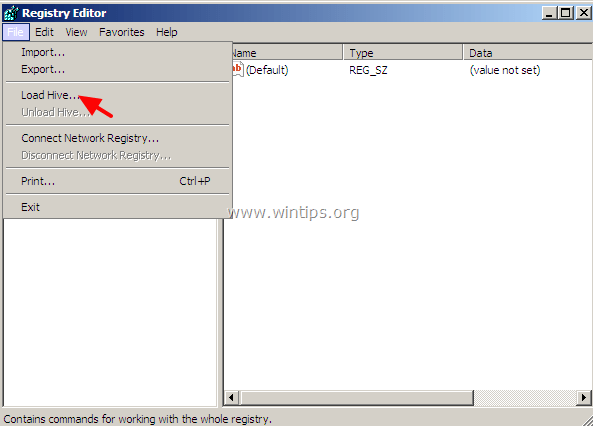
9. Navigate to the disk where Windows installed on (e.g. "C:").
10. Open the system file found in "%Windir%\system32\config\" directory. (e.g. "C:\Windows\system32\config\system")
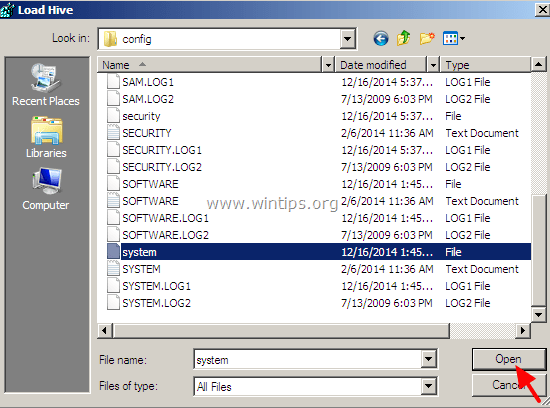
11. Type a Key Name for the offline registry (e.g. "Offline") and press OK.

12. Double-click to expand the HKEY_LOCAL_MACHINE key and you should a new key under it, named with the name you typed before (e.g. 'Offline" in this example).
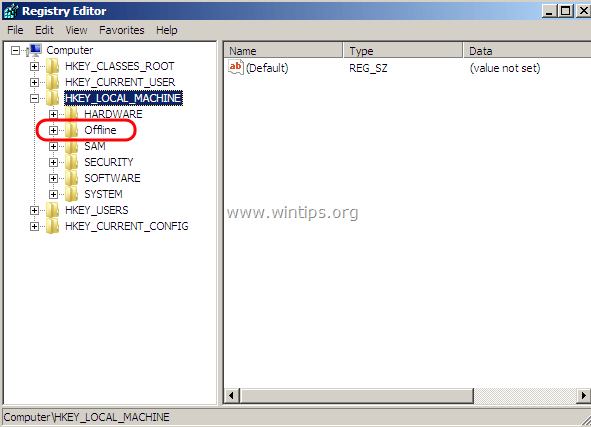
13. Expand this new key & navigate (from the left pane) to this subkey:
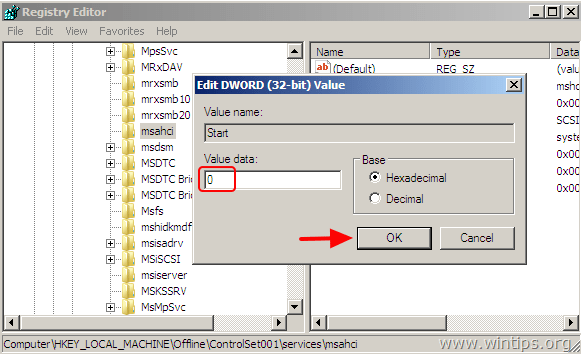
HKEY_LOCAL_MACHINE\Offline\ControlSet001\services\msahci
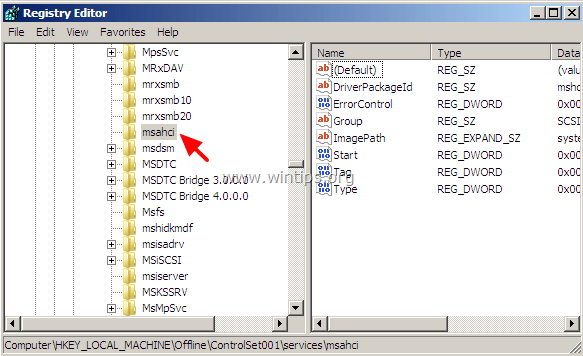
14. At the right pane double click at Start (DWORD) and change its value data to 0 (zero). Click OK when finish.
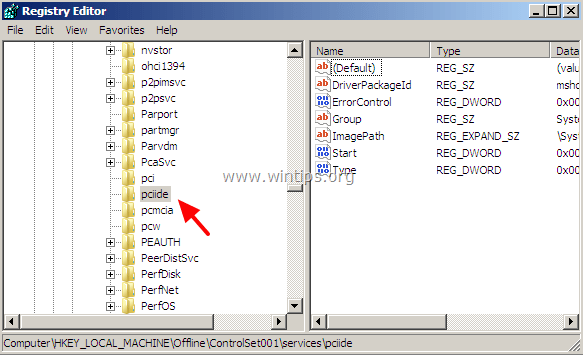
15. Perform the same modification to this subkey:
HKEY_LOCAL_MACHINE\Offline\ControlSet001\services\pciide

16. If you use RAID (otherwise ignore this step) you have to perform the same modification to this key:
HKEY_LOCAL_MACHINE\Offline\ControlSet001\services\iaStorV
17. When you finish with the modifications, highlight the key you created before (e.g. "Offline") and from the File menu choose Unload Hive to write back the changes you made to the offline Registry.

18. Close the Registry editor, the Command prompt window and Restart your computer.
19. Enter BIOS settings and specify the SATA mode (IDE-ATA, AHCI or RAID) according your needs or leave the default settings.
20. Exit BIOS settings, remove the Windows Installation DVD from the CD/DVD drive and let Windows to start normally.


Maruti D. Mirkar: Replace Motherboard Without Reinstalling Windows >>>>> Download Now
ReplyDelete>>>>> Download Full
Maruti D. Mirkar: Replace Motherboard Without Reinstalling Windows >>>>> Download LINK
>>>>> Download Now
Maruti D. Mirkar: Replace Motherboard Without Reinstalling Windows >>>>> Download Full
>>>>> Download LINK